The five built-in actions cover common jobs. When you need something specific — translate this, turn it into bullet points, make it fit a word count — write your own instruction.
Steps
-
Select the text you want to work on.
-
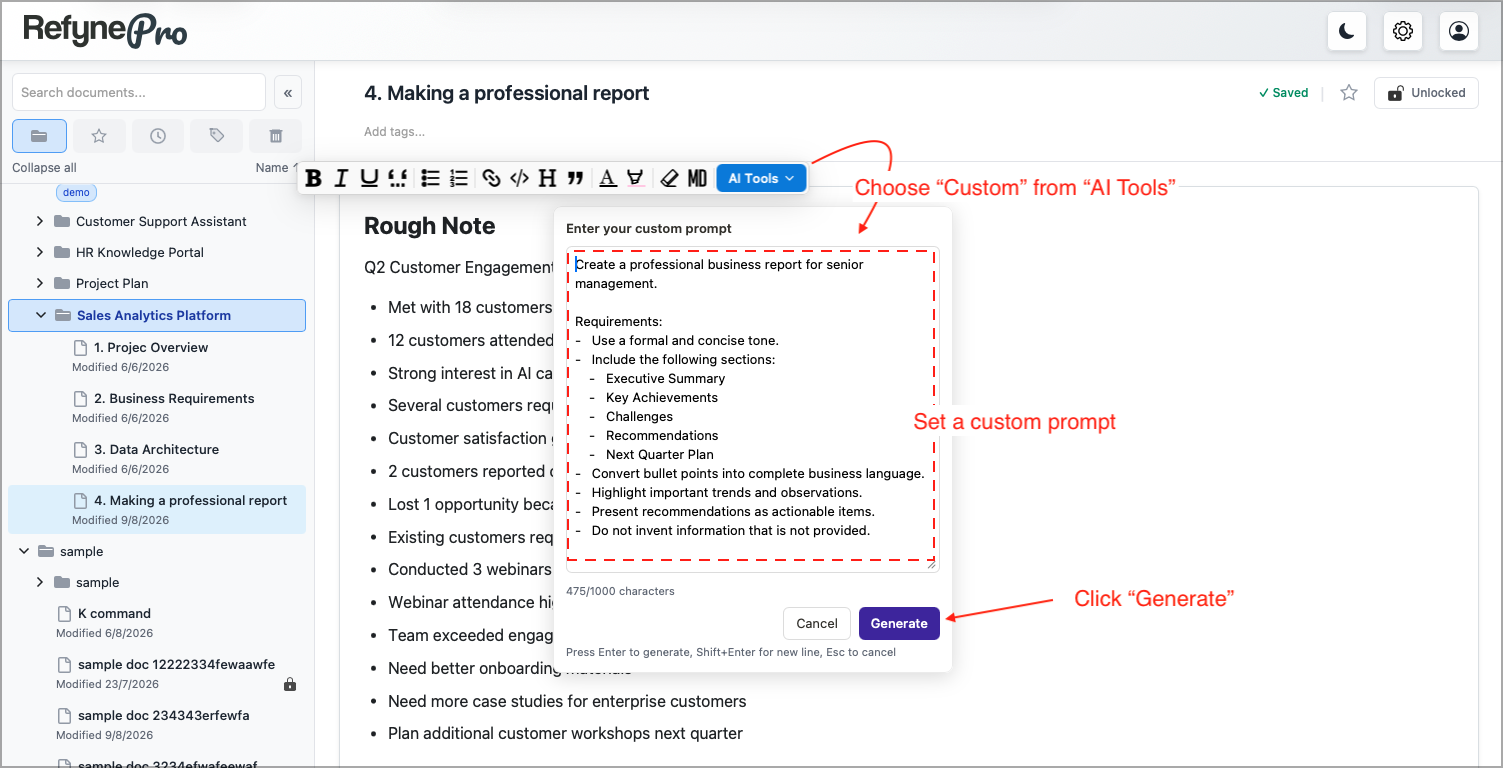
Click AI Tools, then Custom.
-
Type your instruction. Be specific about what you want, as in Rewrite this as three bullet points for a slide.
-
Press Enter, or click Generate. Then choose Replace, Insert Below or Discard, exactly as with the built-in actions.
Your instruction can be up to 1000 characters. Press Shift+Enter for a new line inside the box, or Esc to cancel.
Tip: Custom prompts are used once and not saved. If you have an instruction you rely on often, keep it in a RefynePro document and copy it in when you need it.