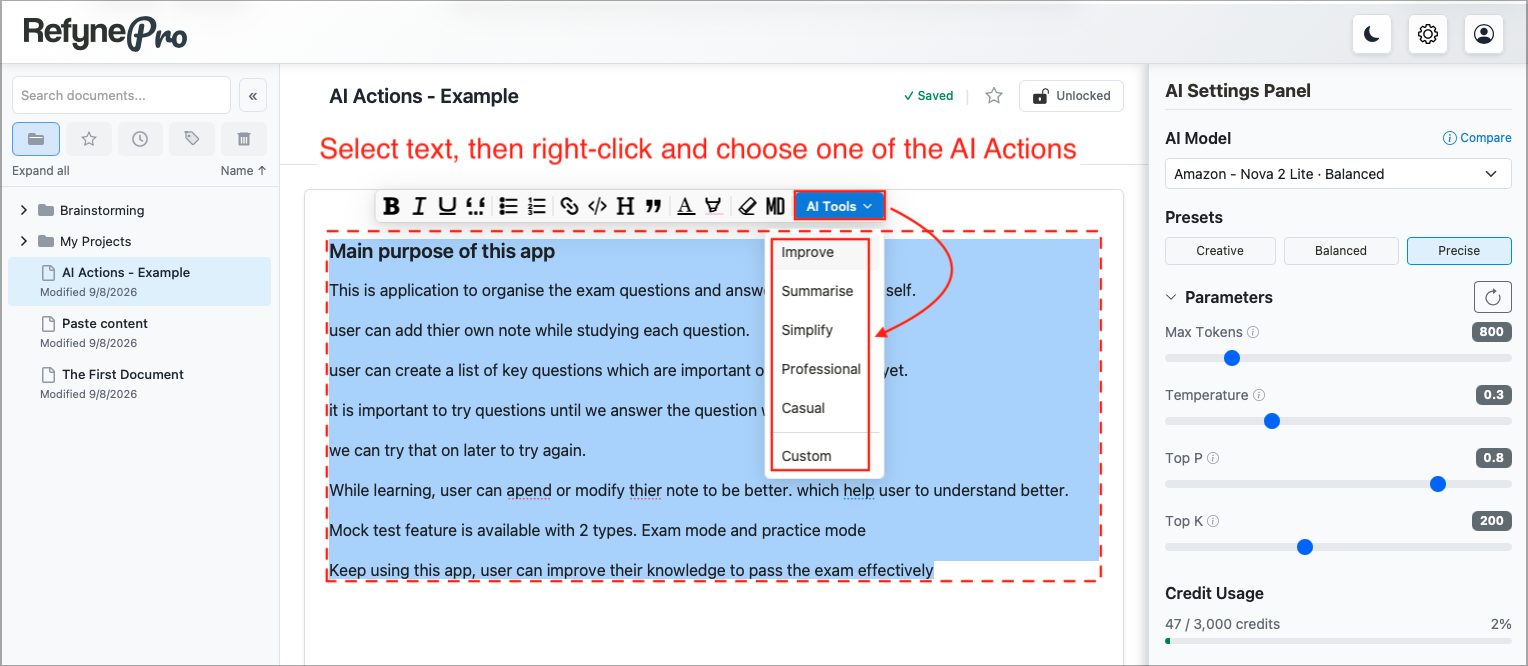
RefynePro can rewrite any text you select. There are five built-in actions: Improve, Summarise, Simplify, Professional and Casual. Nothing changes in your document until you decide to keep the result.
Steps
-
Select the text you want to change. The toolbar appears after about a second, or press Cmd+K (Mac) or Ctrl+K (Windows) to show it straight away.
-
Click AI Tools, then choose an action.
-
Read the result, then choose one of the three buttons:
- Replace — swap your selected text for the new version.
- Insert Below — keep your original and add the new version underneath it.
- Discard — close the window and change nothing.
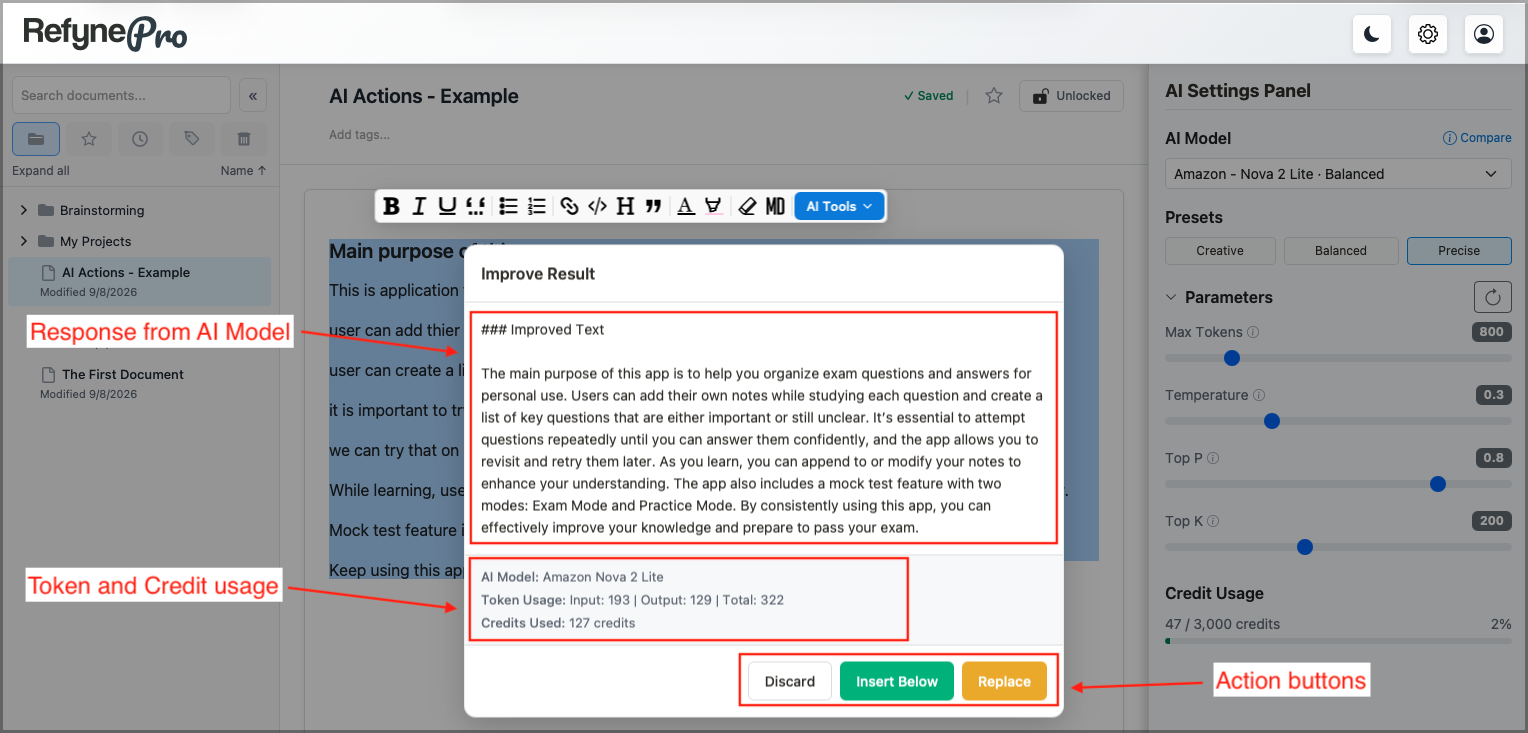
The bottom of the result window shows which model ran, how many tokens it used, and how many credits it cost. If the model explains its thinking, a View Reasoning link appears above that.
Important: Credits are charged as soon as the result appears. Discard still uses them, because the AI has already done the work.
If you cannot use AI Tools
- The button reads Limit Reached when you have used all your credits for the month.
- The toolbar does not appear on a locked document. Unlock it first.
- AI actions are not available while your cursor is inside a table.