RefynePro offers twelve AI models. They differ in quality, speed and how many credits they use, so it is worth choosing the model that suits the job.
Steps
-
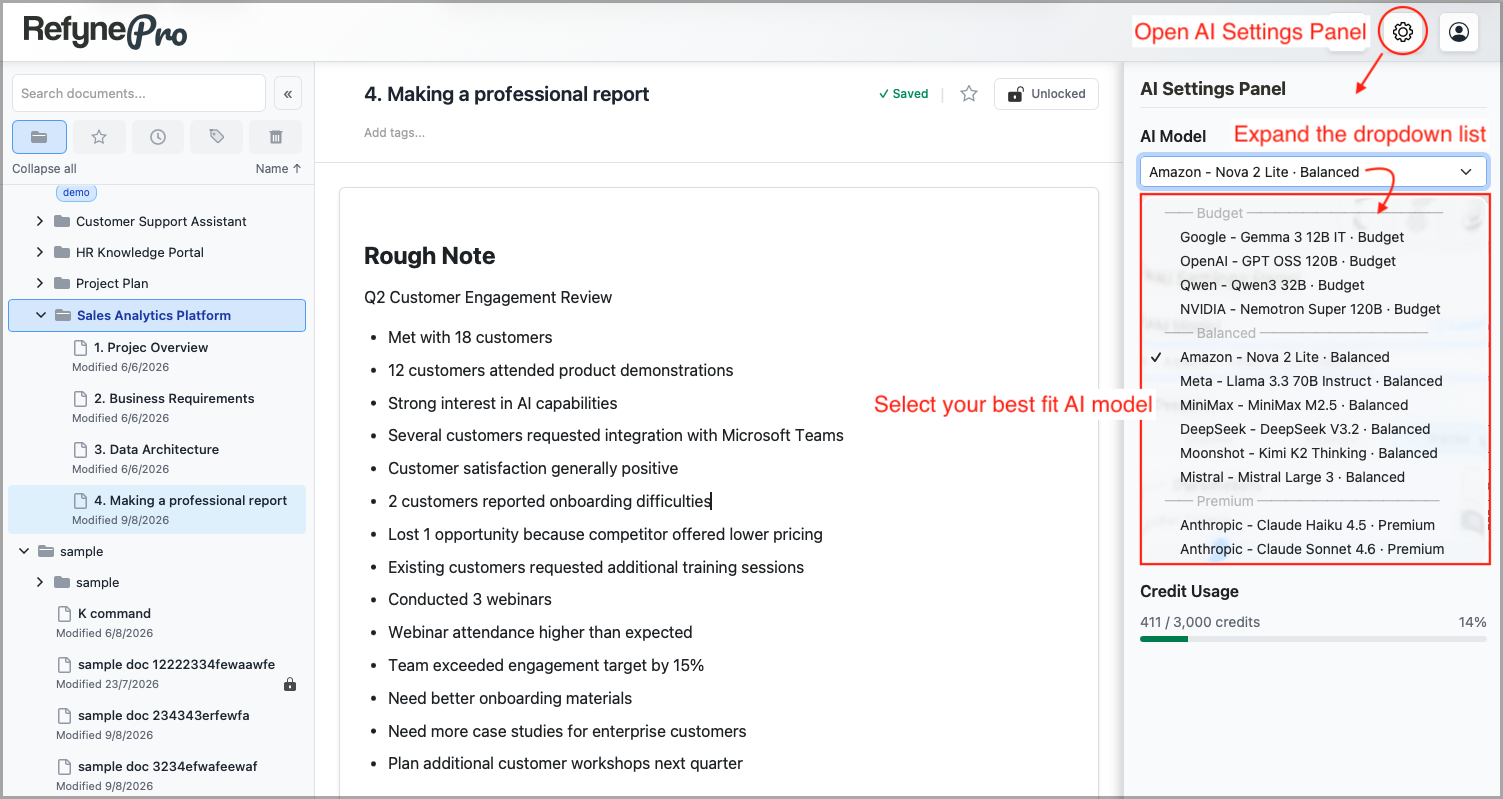
With a document open, click the gear icon in the Header. Its tooltip reads AI Settings Panel.
-
Pick a model from the dropdown. They are grouped into Budget, Balanced and Premium.
-
Close the panel. Your choice applies to every AI action from now on.
Not sure which to pick? Click Compare next to the dropdown for a guide to what each model is good at.
Adjusting the response
Below the model you will find three presets — Creative, Balanced and Precise — which are the quickest way to change the character of the answers. Creative gives more varied wording, Precise sticks closer to your original.
Underneath those are individual sliders for Max Tokens, Temperature, Top P and Top K. Hover over any of them for an explanation. Some models ignore some of these, and the panel tells you when that is the case.
Tip: Budget models cost fewer credits per action. If you are running low, switching to one for routine edits stretches your allowance a long way.
Note: Model and slider settings are remembered by this browser, not by your account. On another computer you will need to set them again.