RefynePro has no permanent toolbar across the top. Instead, a small toolbar appears next to whatever you have selected.
Steps
-
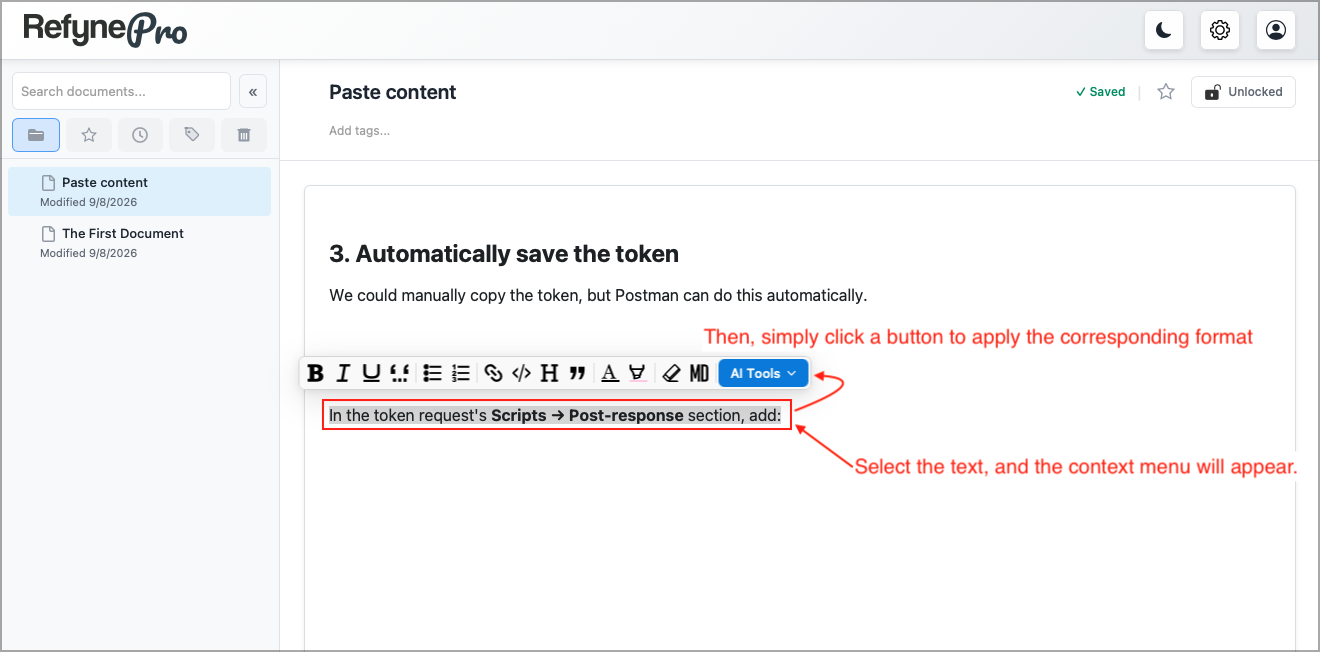
Select the text you want to change. The toolbar appears after about a second — or press Cmd+K (Mac) or Ctrl+K (Windows) to show it immediately.
-
Click the button you need. Hovering over any button tells you what it does and its shortcut.
-
Click anywhere else to dismiss the toolbar.
The toolbar covers bold, italic, underline, inline code, bullet and numbered lists, links, code blocks, headings, quotes, text colour, highlighting, Clear Format, and Copy as Markdown.
Shortcuts worth learning
| Shortcut | Does |
|---|---|
| Cmd/Ctrl + B | Bold |
| Cmd/Ctrl + I | Italic |
| Cmd/Ctrl + U | Underline |
| Cmd/Ctrl + E | Inline code |
| Cmd/Ctrl + Alt + 1 to 6 | Heading 1 to 6 |
| Cmd/Ctrl + \ | Remove all formatting |
Tip: The toolbar does not appear on a locked document, or while your cursor is inside a table. Tables have their own toolbar.