Anything you cannot type directly comes from the insert menu.
Steps
-
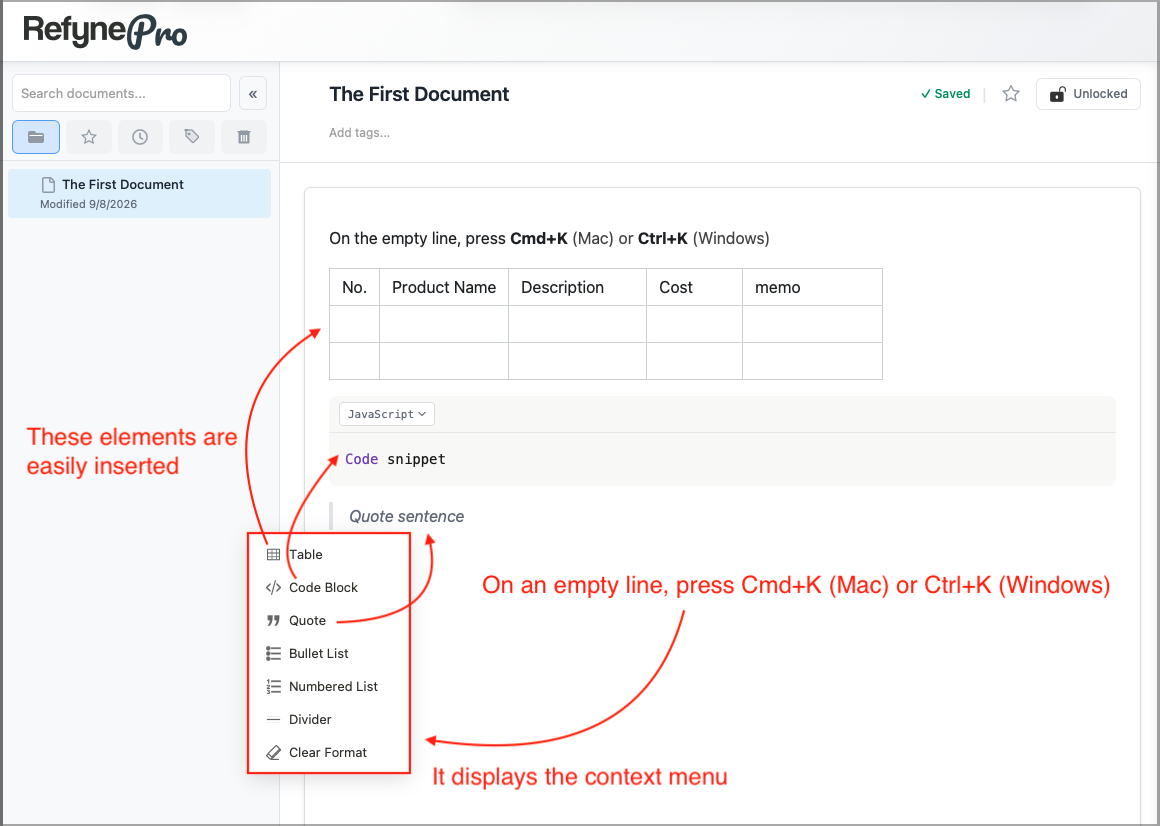
Click on an empty line in your document.
-
Press Cmd+K (Mac) or Ctrl+K (Windows).
-
Choose what you want: Table, Code Block, Quote, Bullet List, Numbered List, Divider or Clear Format. Choosing Table opens a small grid — drag across it to pick how many rows and columns you need.
If you leave the line blank for a second, a faint ⌘K or Ctrl+K hint appears to remind you.
Working with tables
Put your cursor inside a table and a toolbar appears above it, with buttons to add and remove rows and columns, merge and split cells, set a header row, change alignment, and copy the whole table as Markdown.
Working with code blocks
Calling the Password display option useful for storing credentials may imply secure storage. Unless this content is encrypted appropriately, clarify that it only conceals text visually and is not a password manager.
Tip: You can skip the menu entirely. Typing
```starts a code block,>starts a quote, and---makes a divider.