Locking is for documents you have finished with. A locked document can still be read and copied, but not edited or deleted.
Steps
-
Open the document.
-
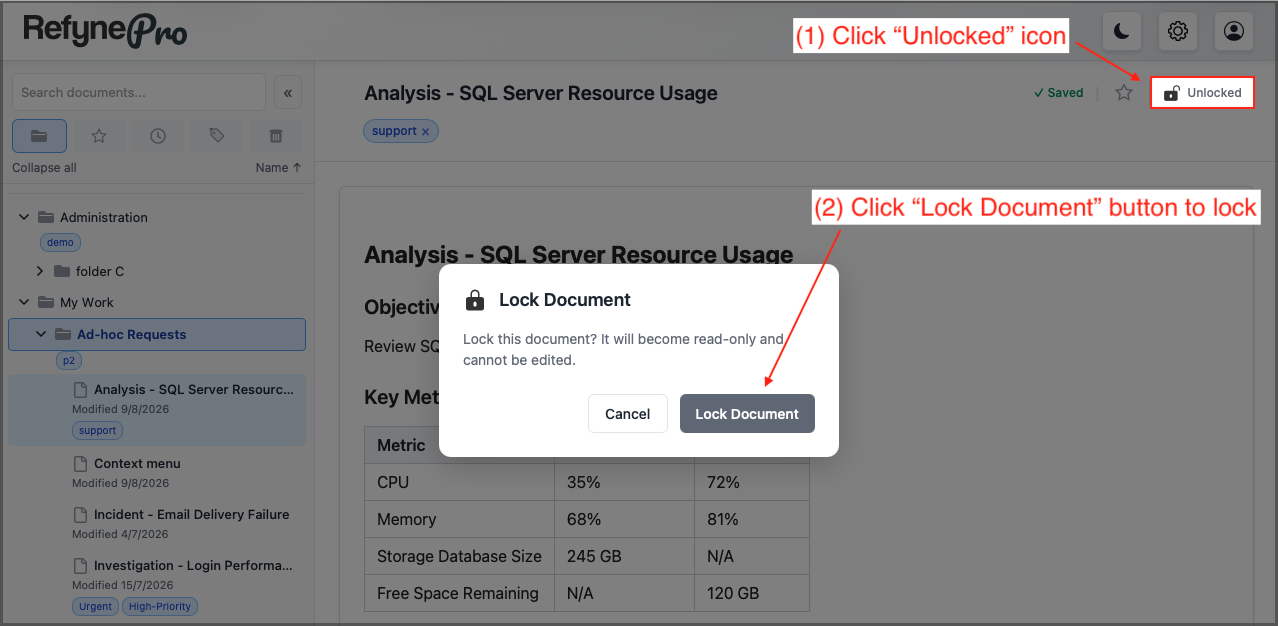
Click the Unlocked button next to the title.
-
Confirm by choosing Lock Document in the message that appears.
The button now reads Locked, and a small padlock appears beside the document in the Document Tree.
To edit it again, click Locked and choose Unlock Document.
What locking prevents
- Typing or formatting in the Editor.
- Changing the title or the tags.
- Deleting the document — you will be told to unlock it first.
- Running AI actions, since those change the text.
Tip: If the formatting toolbar will not appear and the page says it is read-only, the document is locked. Click the padlock to carry on editing.