Renaming and deleting both live in the same right-click menu. Deleting is safe — items go to the trash first, not straight out of existence.
Steps
-
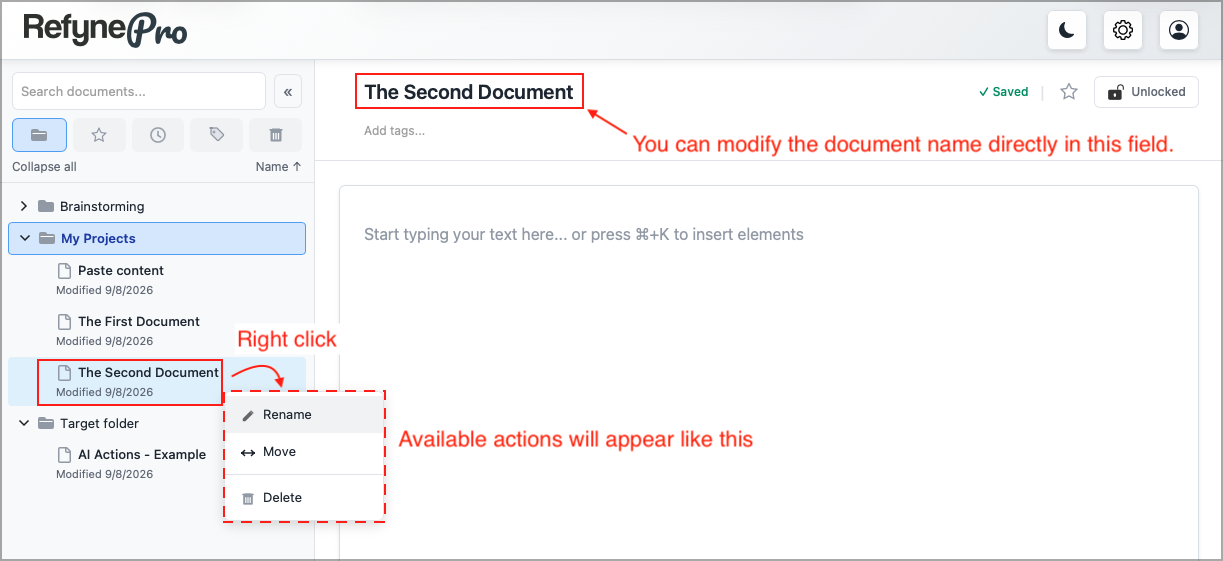
Right-click the folder or document in the Document Tree.
-
Choose Rename to edit the name in place, then press Enter. Or choose Delete to send it to the trash.
-
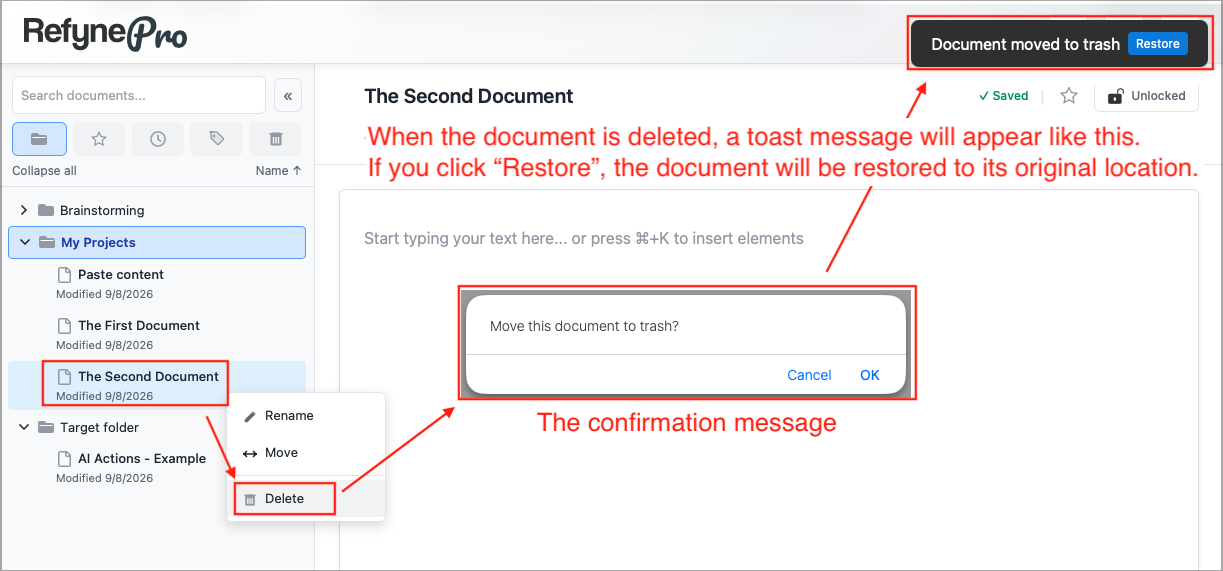
If you chose Delete, confirm the message. Deleting a folder deletes everything inside it, and the message tells you how many items that is. After deleting, a message appears for a few seconds with a Restore button. That is the quickest way to undo a mistake.
Other ways to rename: use the pencil icon beside the name of the folder you are viewing.
Tip: A locked document cannot be deleted. Unlock it first.