Folders keep related documents together. You can create a folder at the top level of your workspace, or inside an existing folder to build a nested structure.
Steps
-
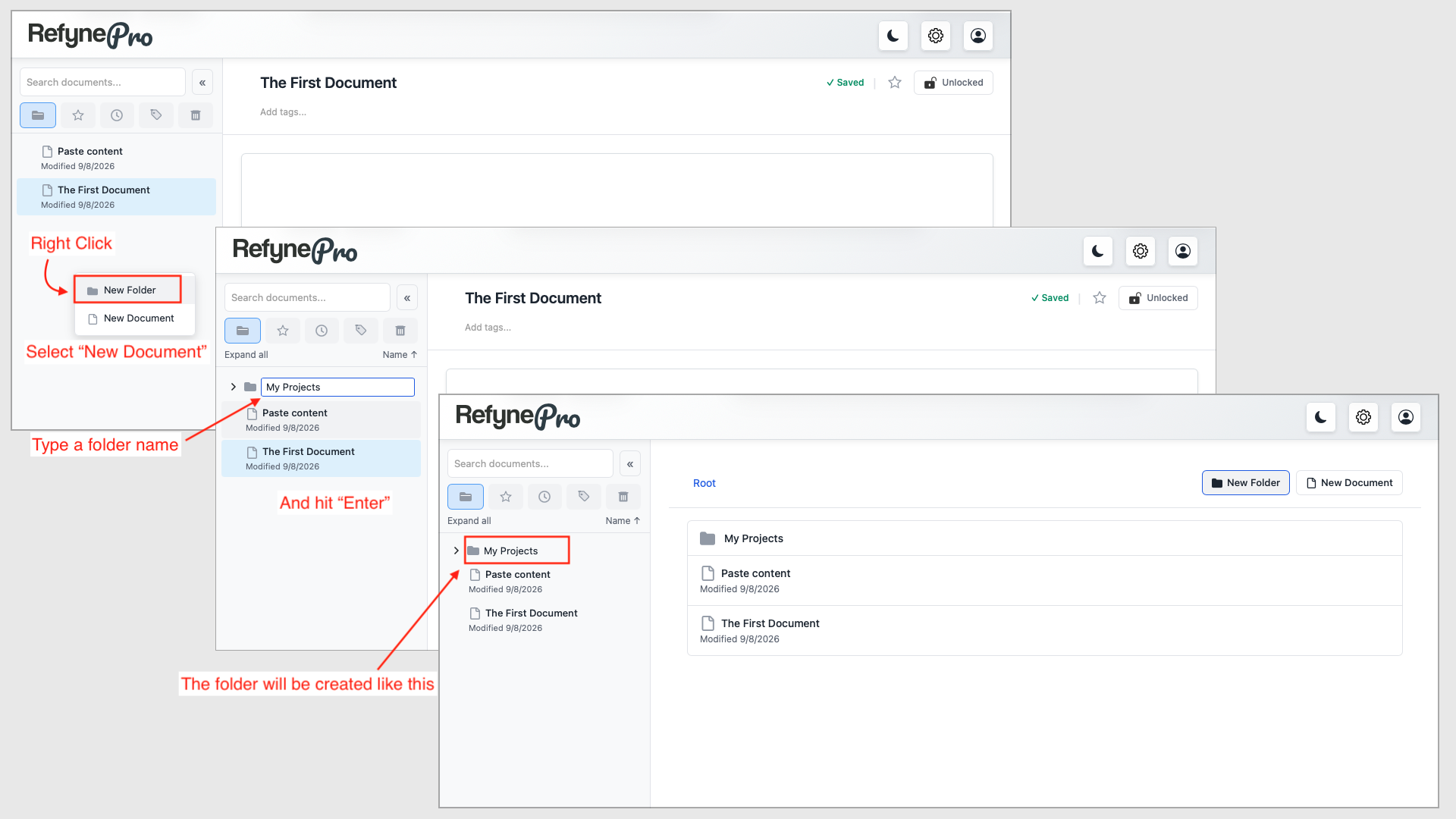
In the Document Tree, right-click an empty area. To put the new folder inside an existing folder, right-click that folder instead.
-
Choose New Folder.
-
Type a name in the box that appears, then press Enter.
Your folder appears in the Document Tree and a Folder created message confirms it.
Other ways to do this: open a folder in the Workspace and click New Folder in the toolbar above the list.
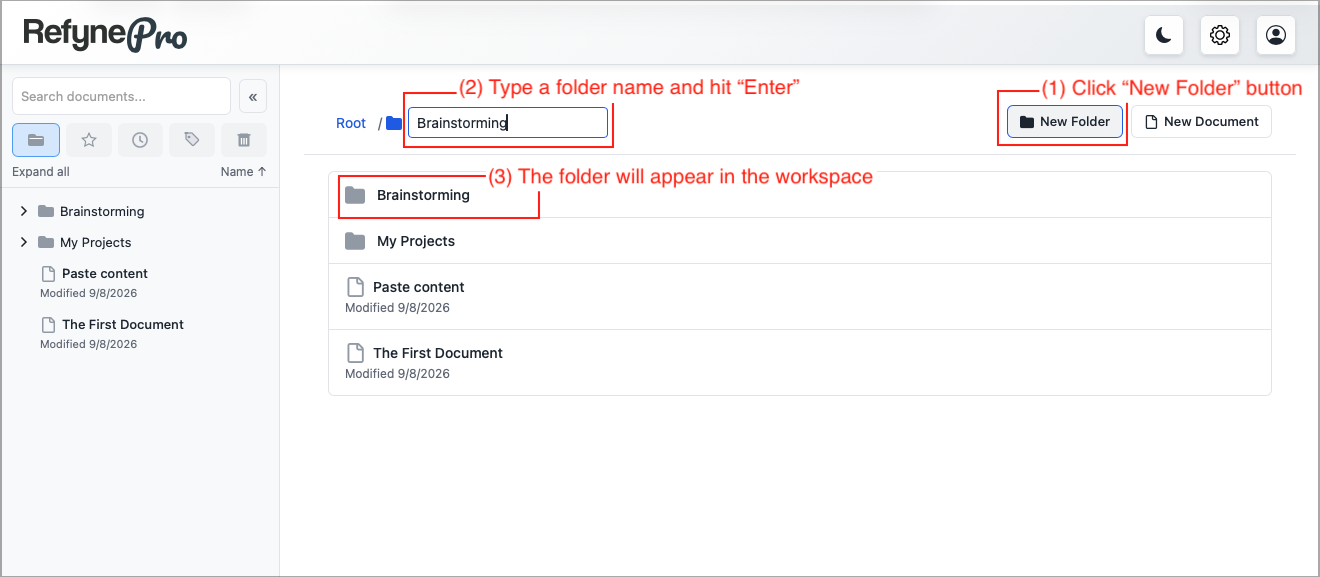
Tip: Press Esc while typing to cancel. Leaving the name empty cancels too.