There are two ways to move a document: pick a destination from a menu, or drag it. Both work only in the Document Tree.
Steps
-
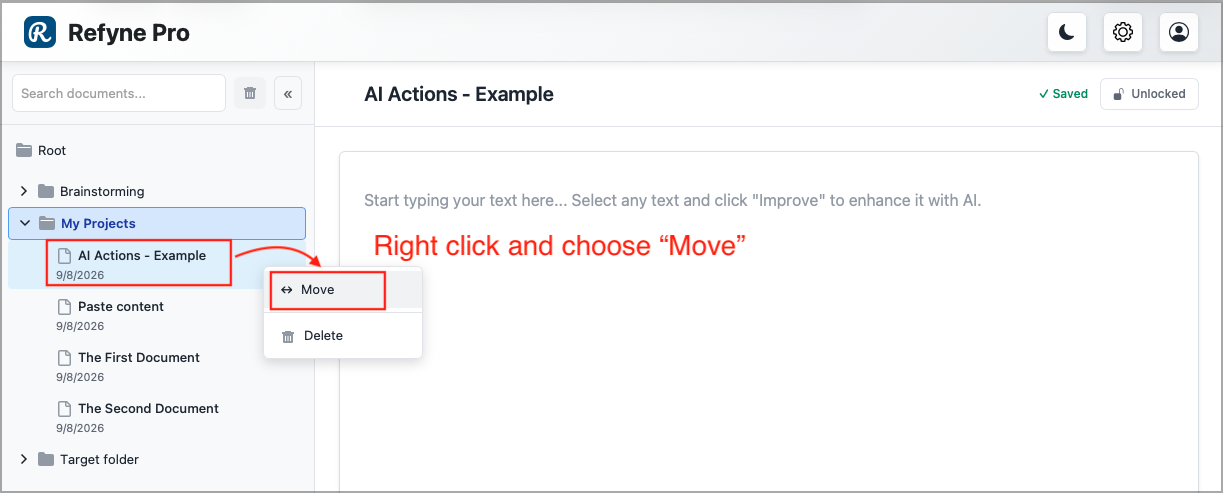
Right-click the document in the Document Tree and choose Move.
-
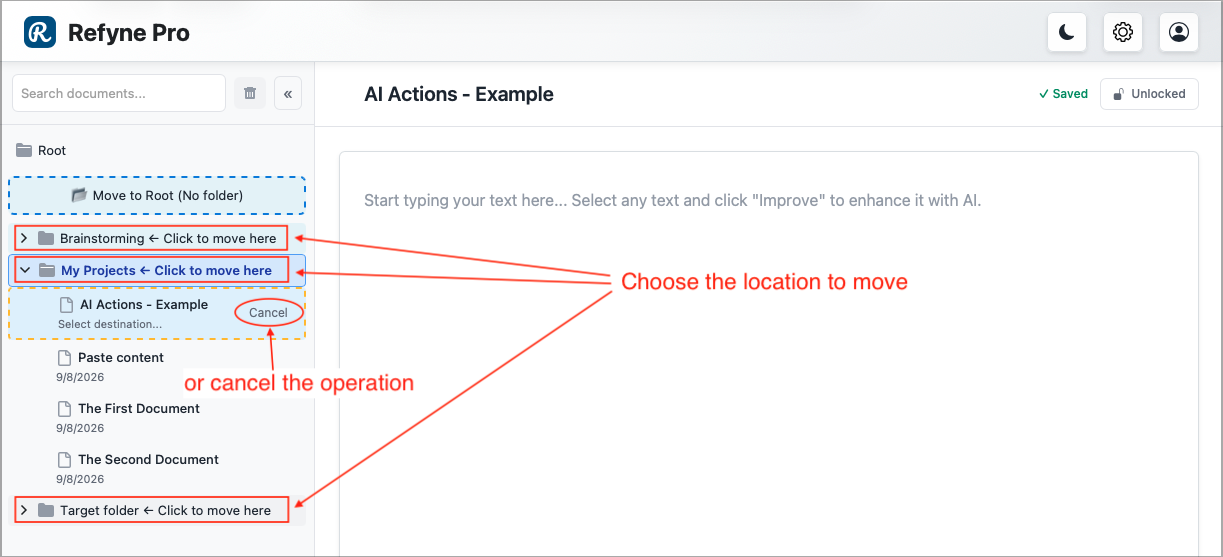
Every folder you can move it into now shows ← Click to move here. Click your destination.
-
To take the document out of all folders instead, click the Move to Root (No folder) banner at the top of the Document Panel.
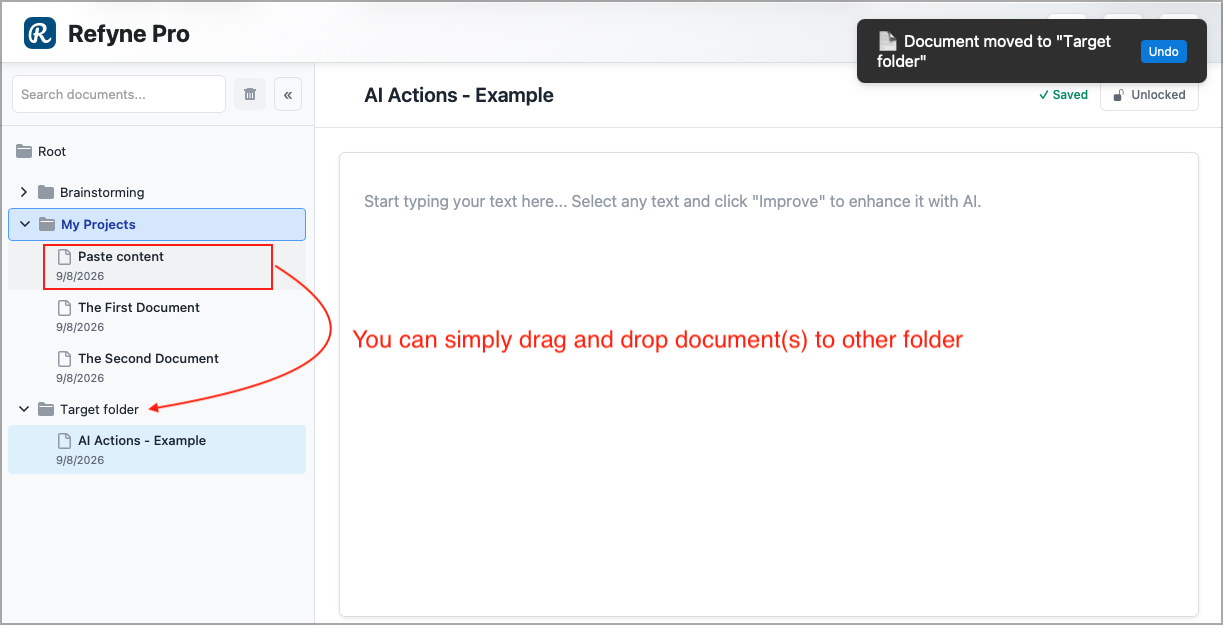
A message confirms the move and offers Undo if you picked the wrong folder.
Other ways to do this: drag the document onto a folder in the Document Tree and drop it.
Moving several at once
Hold Cmd (Mac) or Ctrl (Windows) and click each document to select it, or click the first and Shift-click the last to select a range. Then right-click and choose Move 3 documents, where the number matches your selection.
Tip: Select Cancel next to the document if you change your mind while choosing a destination.