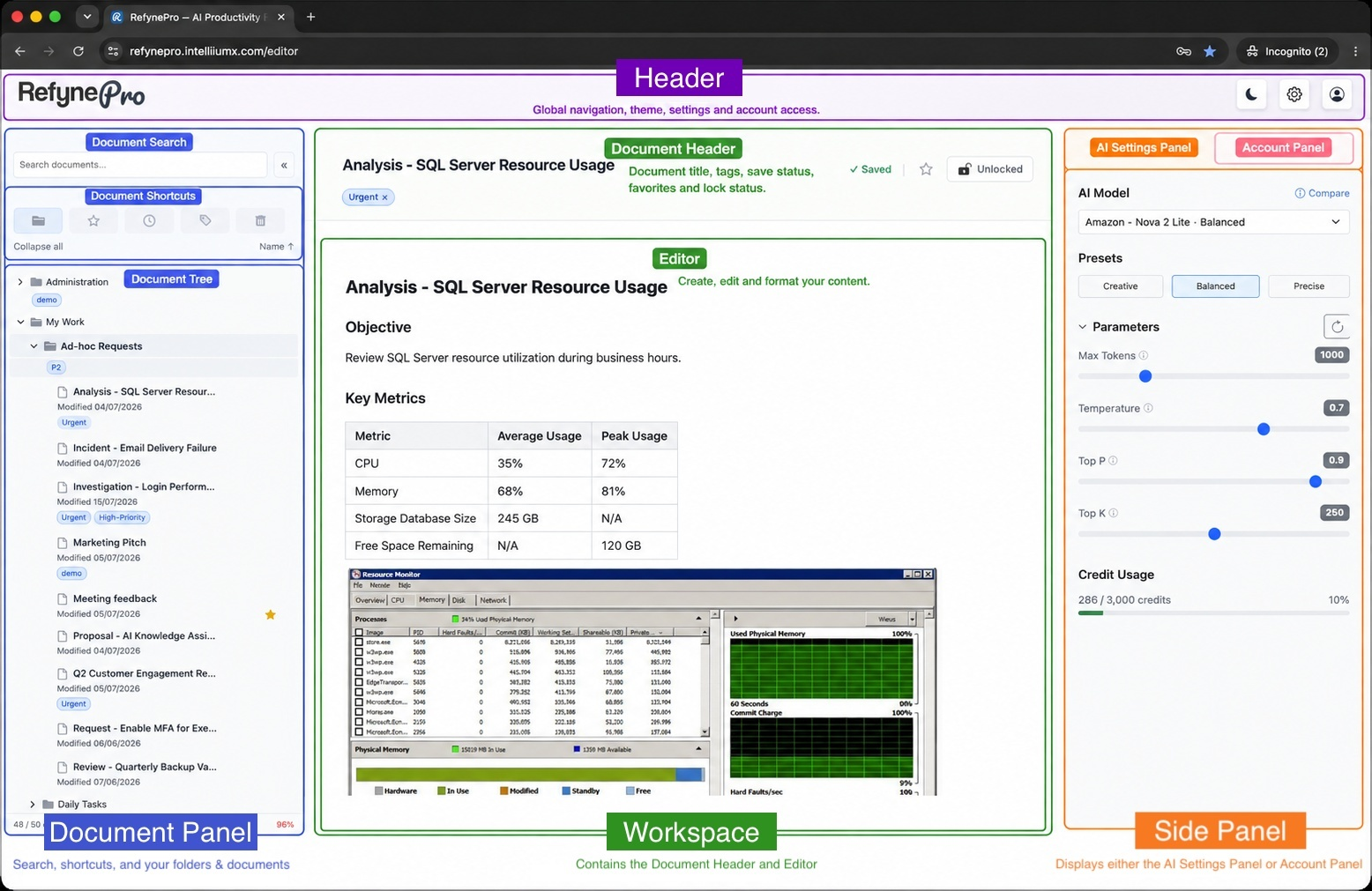
The RefynePro Editor has four main areas: the Header, Document Panel, Workspace and Side Panel. This guide uses these names throughout.
Header
The theme icon switches between Light Mode and Dark Mode. The gear icon opens the AI Settings Panel. The person icon opens the Account Panel.
Document Panel
The Document Panel helps you find and organise your work. It contains:
- Document Search — search document titles, folder names and tags.
- Document Shortcuts — switch between Folder view, Favourites, Recent, Tags and Trash.
- Document Tree — browse your folders and documents as a hierarchy.
Workspace
Selecting a folder in the Workspace shows its contents and the New Folder and New Document controls. Selecting a document shows two areas:
- Document Header — the document title, tags, favourite and lock controls, and save status.
- Editor — the page where you write, format text, add content and use AI actions.
Side Panel
The Side Panel opens on the right when you select the AI Settings Panel or Account Panel icon in the Header:
- AI Settings Panel — choose the AI Model, apply Presets, adjust Parameters and review Credit Usage.
- Account Panel — manage account-related controls, including your plan, credits and security settings.