Once you have more than a handful of documents, searching beats scrolling.
Steps
-
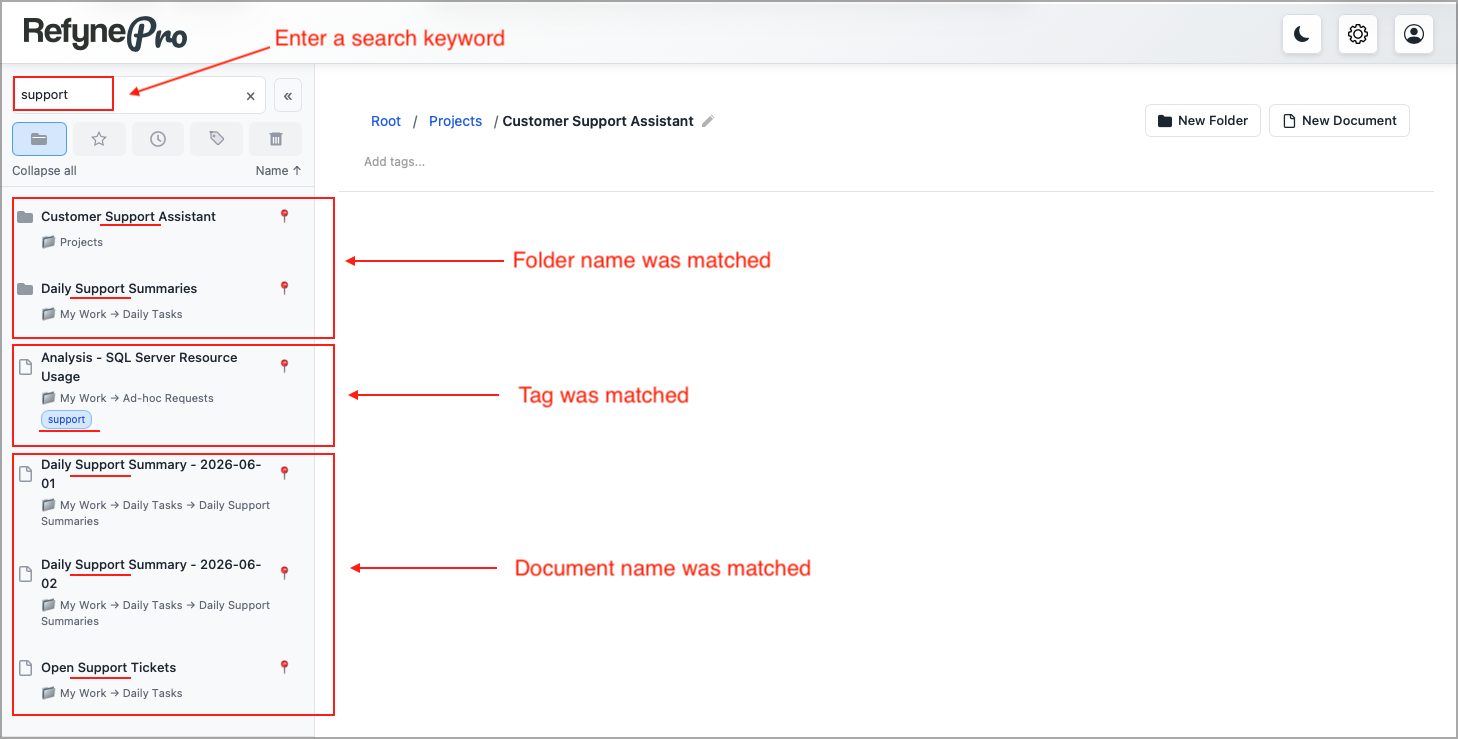
Click Document Search at the top of the Document Panel and start typing. Results appear as you type.
-
Read the results. Folders are listed first, then documents, and each one shows the folder path it lives in.
-
Click a result to open it, or click the pin icon beside it to Reveal in folder — this clears the search, expands the tree and shows you where the item actually sits.
Search matches document titles, folder names and tags. It does not search the text inside your documents.
Getting back to recent work
Click Recent in the Document Shortcuts to see the last 20 documents you changed, most recent first. Search is switched off in this view — that is why the box reads Search disabled in Recent.
Tip: Untitled documents appear as Untitled and are hard to find later. Naming a document when you create it saves time.