Favouriting a document puts it in a list of its own, so you do not have to remember which folder it is in.
Steps
-
Open the document.
-
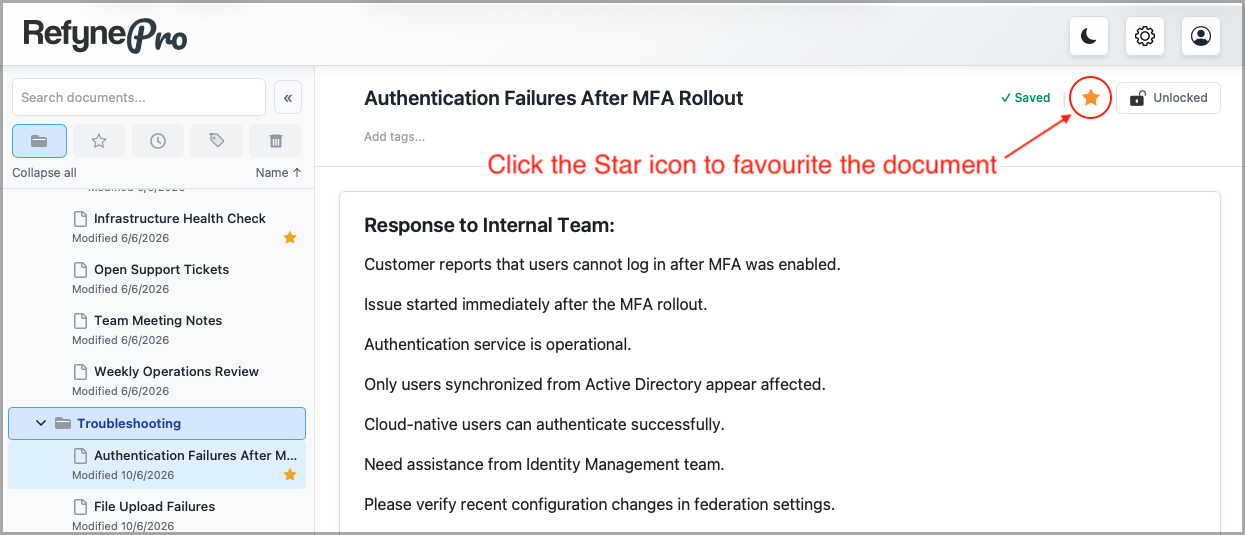
Click the star icon next to the title. Its tooltip reads Add to Favourites.
-
To see your favourites, click Favourites in the Document Shortcuts.
Favourited documents also show a small star beside them in the Document Tree, so you can spot them in the normal folder hierarchy.
To remove one, open it and click the star again — the tooltip now reads Remove from Favourites.
Tip: The Favourites list is ordered by when you last changed each document, so whatever you are working on now stays near the top.