Two-factor authentication asks for a six-digit code from your phone whenever you sign in. It is available on the Standard and Premium plans.
Steps
-
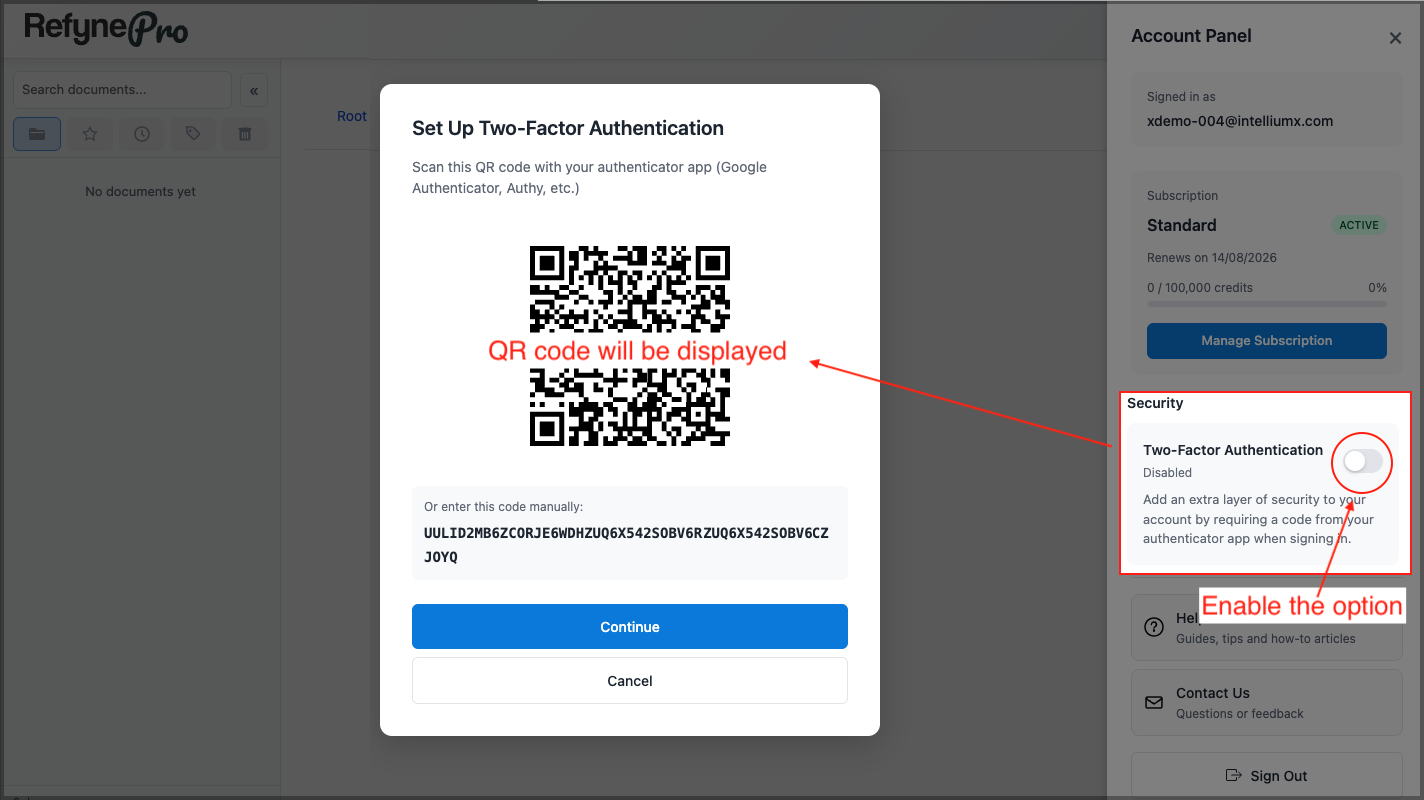
Click the person icon in the Header to open the Account Panel, then scroll to Security.
-
Switch on the Two-Factor Authentication toggle.
-
Scan the QR code with an authenticator app such as Google Authenticator or Authy, then click Continue.
-
Type the six-digit code from your app and click Verify & Enable.
From now on, signing in asks for a code from your app after your password.
Important: RefynePro does not issue backup codes. Before you click Continue, copy the setup key shown under Or enter this code manually: and store it somewhere safe. If you lose your phone and do not have that key, you will need to contact support to get back in.
To turn it off, switch the same toggle off and confirm. On the Free plan the toggle is greyed out and clicking it explains that the feature needs a paid plan.